
Reset your Linux root user a.k.a. superuser password by going to single user mode. Its simple even for newbies who dread the command line. It always happens that you forget the Linux root user password and fumble about without knowing what to do. I’ll outline the steps to reset root password on both redhat variants (fedora, Mandriva) and Debian (Knoppix, Ubuntu) variants. And also tell you how to overcome certain errors you might face while doing so.After you switch on your system keep pressing [Tab] key repeatedly until you see the Linux boot loader. Sometimes it may automatically boot into the default OS. You’ll see a screen similar to the following
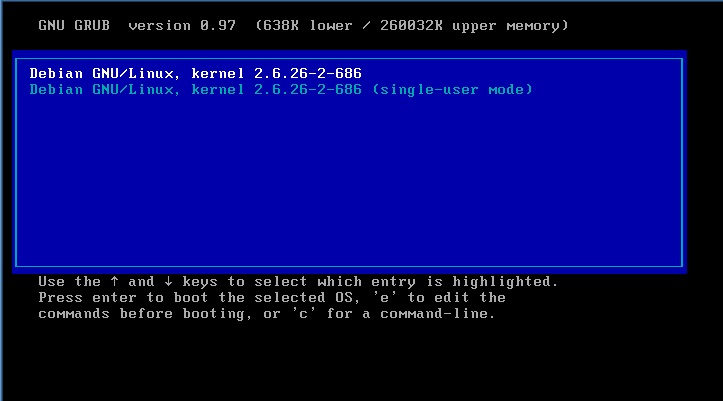
Press ‘e’ to edit the entry, from the choices that appear select the second option and press ‘e’ again to see that option editable in the command line. Now after a space type the words “single” without quotes. Now that line should look something like this
kernel /vmlinuz-2.6.26-2-686 root=/dev/sda4 ro quiet single
Press [Enter] to see the newly edited line in the options. Now select that line and press ‘b’ to boot in single user mode. You will NOT be prompted for that password and will directly be logged in as the root user. Now type passwd and enter the new password
sh-3.2# passwd

Enter new UNIX password:

Retype new UNIX password:

passwd: password updated successfully
Now type ‘reboot’ without quotes to restart the system and enter into your normal working state with the new root password.
But wait it isn’t so easy for everyone some of you might face the following problems.
System prompts for Root password
Even though you added the word single some Linux Distros might prompt for the password. To solve this add init=/bin/sh after the word single in the bootloader. Now it should look like
kernel /vmlinuz-2.6.26-2-686 root=/dev/sda4 ro quiet single init=/bin/sh
now you won’t be prompted for the password.
passwd: Authentication token lock busy
You might encounter this error after executing the passwd command you’ll also see the message “passwd: Password Unchanged” this is because you’re in read-only mode. There are two ways to solve this
In the bootloader find the letters ro and change it to rw
kernel /vmlinuz-2.6.26-2-686 root=/dev/sda4 rw quiet single init=/bin/sh
OR, after logging in single user mode type
mount -o remount,rw /
now running the passwd command should do the trick.




[…] user must be root or have sudo permissions to edit this […]