The vmware virtual network editor can be of immense help for experts who want to tweak each and every component in their virtual network. Unfortunately it won’t get installed on your system when you install VMware player but fortunately copying it manually is not so difficult. The article Components of VMware Network contains instructions on copying vmnetcfg.exe.
Customizing DHCP Settings
Using vmnetcfg tool you can customize the default DHCP scope i.e. the range of IP addresses that will be assigned to the virtual machines in that network. The lease time can also be extended as per requirements. To customize DHCP settings open vmnetcfg.exe select your desired virtual network and click DHCP settings.

Configuring Virtual Bridging
Using the bridging configuration you can make your Virtual Machine act as a separate computer on the network having its own identity on the network. To establish a network bridge with the required host network adapter of your choice, you must ensure that the “VMware Bridge Protocol” is enabled for that network adapter.
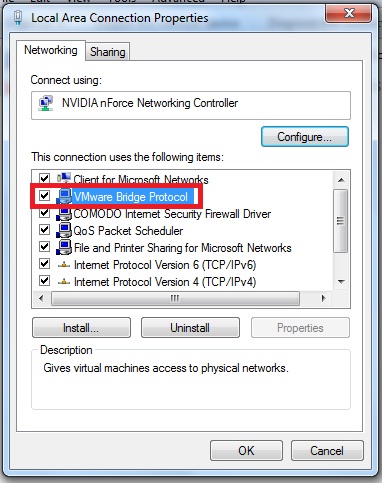
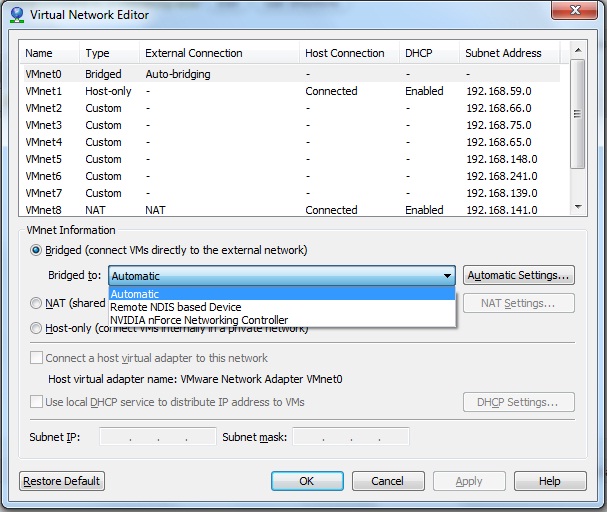
Open vmnetcfg.exe select VMnet0. This is the default virtual switch which uses bridging network configuration. From the drop down box below select the host adapter to which you want VMnet0 to be bridged. If your desired adapter isn’t appearing in the list it is because “vmware bridge protocol” is disabled for that adapter.
Configuring Port Forwarding
The default virtual switch for NAT (Network Address Translation) is VMnet8. After a fresh installation of VMware player only the DHCP of VMnet8 is configured, we need to configure port forwarding for NAT to work. For this select VMnet8 click NAT settings button. Go to Add and enter the host port number for which you will get the request, the virtual machine’s IP address and port number to which this connection will be forwarded. Enter a description for better understandability.
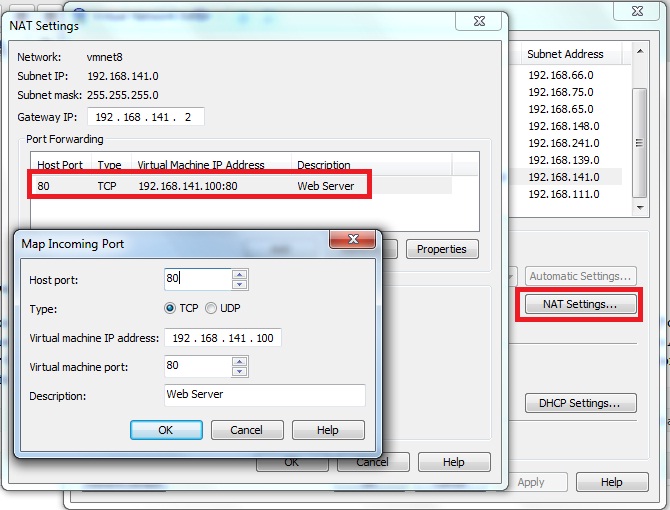
In the screen above assuming that my host computer‘s IP address is 192.168.0.1 and it receives a request on port 80, (commonly used for web servers) the request is forwarded to the virtual machine with IP address 192.168.141.100 on port 80. Note that the host port and Virtual machine’s port needn’t be the same. In a situation where you’re running your web server on port 8080 (or any other port) you can forward 192.168.0.1 on port 80 (host) to 192.168.141.100 on port 8080 (Virtual Machine).
Thanks!